> ## Documentation Index
> Fetch the complete documentation index at: https://docs.thunderphone.com/llms.txt
> Use this file to discover all available pages before exploring further.
# 可嵌入式语音组件
> 只需几行代码,即可将语音智能体添加到任何网站
ThunderPhone 可嵌入式语音小组件让您的网站访客能够直接通过浏览器与 AI 智能体交谈。无需拨打电话——用户只需点击按钮,即可开始由 ThunderPhone 提供支持的实时语音对话。
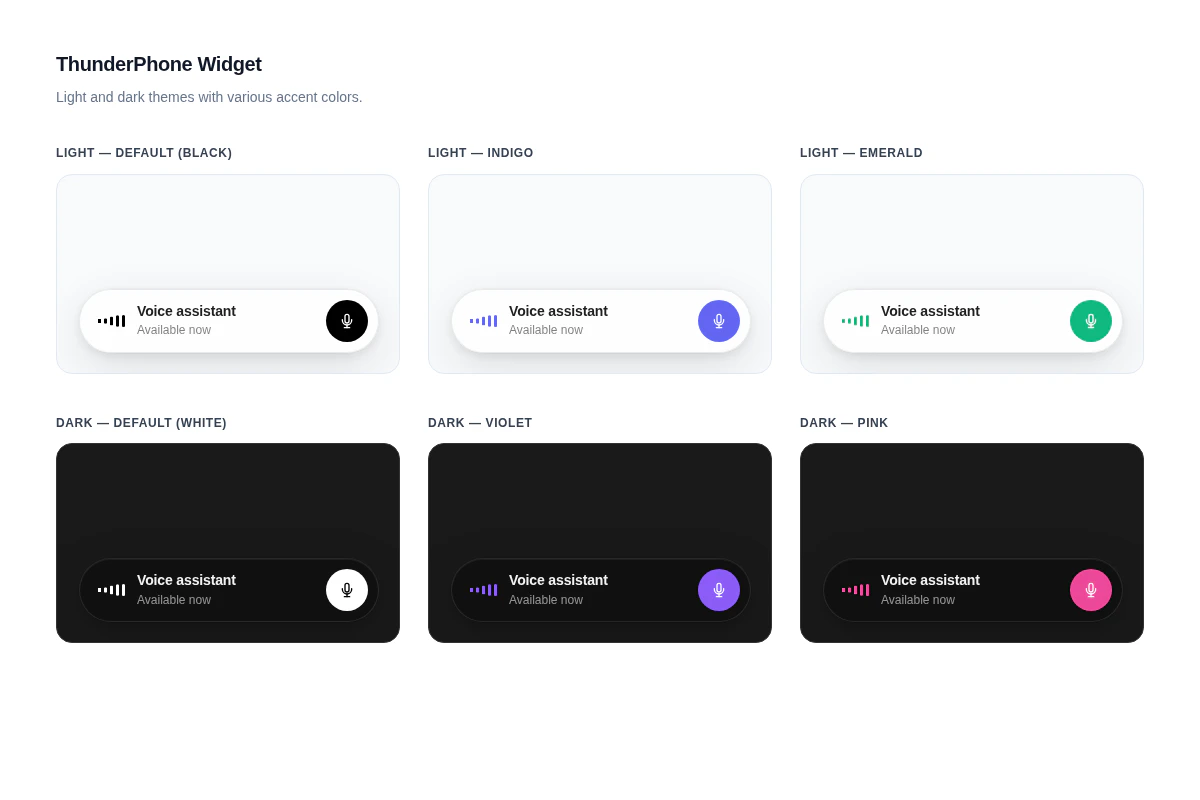
该小组件以玻璃拟态栏的形式呈现,可适配浅色和深色主题,并支持自定义强调色和位置。它以 `@thunderphone/widget` npm 包的形式分发,也可通过 CDN 用于非打包工具环境。
 ## 前提条件
在嵌入小组件之前,请在 [ThunderPhone 控制台](https://app.thunderphone.com)中完成以下三个步骤:
前往控制台设置中的 **开发者**,然后创建一个可发布密钥。可发布密钥以 `pk_live_` 开头,可安全地包含在客户端代码中。
在同一开发者设置中,添加将嵌入小组件的域名。开发环境始终允许使用 `localhost`。支持通配符(例如 `*.example.com`)。
前往控制台中的 **Web 小组件** 并创建一个小组件。选择您希望公开的智能体以及要使用的可发布密钥。系统会根据您的可发布密钥配置自动解析智能体。
可发布密钥(`pk_live_...`)与您的私密 API 令牌**不同**。可发布密钥专为客户端使用而设计,并且其作用域限定为允许域名上的小组件会话。切勿在客户端代码中使用您的私密 API 令牌。
***
## 快速开始
安装该软件包:
```bash theme={null}
npm install @thunderphone/widget
```
将小组件添加到您的应用中:
```tsx theme={null}
import { ThunderPhoneWidget } from '@thunderphone/widget'
import '@thunderphone/widget/style.css'
function App() {
return (
)
}
```
就是这样。您的用户将看到一个玻璃拟态通话栏,只需点击一下即可连接到您的 AI 智能体。
***
## 自定义
该小组件提供四个外观属性:
| 属性 | 默认值 | 说明 |
| -------------- | -------------------------------- | ---------------------------------------------------------------- |
| `theme` | `'light'` | `'light'` 表示白色玻璃效果,`'dark'` 表示深色玻璃效果 |
| `primaryColor` | `'#000000'`(浅色)/ `'#ffffff'`(深色) | 开始按钮、波形和连接指示器的强调色 |
| `title` | `'Voice assistant'` | 小组件中显示的文本 |
| `position` | `'bottom-right'` | 视口角落:`'bottom-right'`、`'bottom-left'`、`'top-right'`、`'top-left'` |
```tsx Light theme (default) theme={null}
```
```tsx Dark theme with custom color theme={null}
```
另外三个属性用于自定义会话而非外观——通话开始时,它们都会转发至会话请求:
| 属性 | 说明 |
| ---------- | -------------------------------------------- |
| `language` | 按会话覆盖语言设置——可使用代码或区域设置,例如 `en`、`es` 或 `fr-FR` |
| `voice` | 按会话覆盖语音设置——可使用语音名称,例如 `maria` |
| `context` | 传递给智能体的事实性页面或网站上下文(服务端会截断至 12,000 个字符) |
有关完整的属性表,请参阅 [React 组件参考](/zh/widget/react)。
如需完全自定义的 UI,请使用 [无头 Hook](/zh/widget/headless-hook) 管理语音会话,同时构建您自己的界面。该 Hook 提供实时音频电平,可用于构建音频响应式可视化效果。
***
## 集成选项
选择适合您技术栈的集成方式:
预构建的 UI 组件,内置通话控制和状态显示。导入、传入 props,即可完成。
完全掌控 UI。`useThunderPhone` Hook 管理语音会话,您可以构建自己的界面。
无需打包工具。通过 script 标签为静态网站、WordPress 和其他非 React 环境加载小组件。
***
## 样式
该小组件内置浅色和深色主题,由 `theme` prop 控制;强调色由 `primaryColor` prop 控制。如需更深入的自定义,您可以覆盖 CSS 自定义属性和类。详情请参阅[样式指南](/zh/widget/styling)。
需要帮助?请通过 [support@thunderphone.com](mailto:support@thunderphone.com) 联系我们
## 前提条件
在嵌入小组件之前,请在 [ThunderPhone 控制台](https://app.thunderphone.com)中完成以下三个步骤:
前往控制台设置中的 **开发者**,然后创建一个可发布密钥。可发布密钥以 `pk_live_` 开头,可安全地包含在客户端代码中。
在同一开发者设置中,添加将嵌入小组件的域名。开发环境始终允许使用 `localhost`。支持通配符(例如 `*.example.com`)。
前往控制台中的 **Web 小组件** 并创建一个小组件。选择您希望公开的智能体以及要使用的可发布密钥。系统会根据您的可发布密钥配置自动解析智能体。
可发布密钥(`pk_live_...`)与您的私密 API 令牌**不同**。可发布密钥专为客户端使用而设计,并且其作用域限定为允许域名上的小组件会话。切勿在客户端代码中使用您的私密 API 令牌。
***
## 快速开始
安装该软件包:
```bash theme={null}
npm install @thunderphone/widget
```
将小组件添加到您的应用中:
```tsx theme={null}
import { ThunderPhoneWidget } from '@thunderphone/widget'
import '@thunderphone/widget/style.css'
function App() {
return (
)
}
```
就是这样。您的用户将看到一个玻璃拟态通话栏,只需点击一下即可连接到您的 AI 智能体。
***
## 自定义
该小组件提供四个外观属性:
| 属性 | 默认值 | 说明 |
| -------------- | -------------------------------- | ---------------------------------------------------------------- |
| `theme` | `'light'` | `'light'` 表示白色玻璃效果,`'dark'` 表示深色玻璃效果 |
| `primaryColor` | `'#000000'`(浅色)/ `'#ffffff'`(深色) | 开始按钮、波形和连接指示器的强调色 |
| `title` | `'Voice assistant'` | 小组件中显示的文本 |
| `position` | `'bottom-right'` | 视口角落:`'bottom-right'`、`'bottom-left'`、`'top-right'`、`'top-left'` |
```tsx Light theme (default) theme={null}
```
```tsx Dark theme with custom color theme={null}
```
另外三个属性用于自定义会话而非外观——通话开始时,它们都会转发至会话请求:
| 属性 | 说明 |
| ---------- | -------------------------------------------- |
| `language` | 按会话覆盖语言设置——可使用代码或区域设置,例如 `en`、`es` 或 `fr-FR` |
| `voice` | 按会话覆盖语音设置——可使用语音名称,例如 `maria` |
| `context` | 传递给智能体的事实性页面或网站上下文(服务端会截断至 12,000 个字符) |
有关完整的属性表,请参阅 [React 组件参考](/zh/widget/react)。
如需完全自定义的 UI,请使用 [无头 Hook](/zh/widget/headless-hook) 管理语音会话,同时构建您自己的界面。该 Hook 提供实时音频电平,可用于构建音频响应式可视化效果。
***
## 集成选项
选择适合您技术栈的集成方式:
预构建的 UI 组件,内置通话控制和状态显示。导入、传入 props,即可完成。
完全掌控 UI。`useThunderPhone` Hook 管理语音会话,您可以构建自己的界面。
无需打包工具。通过 script 标签为静态网站、WordPress 和其他非 React 环境加载小组件。
***
## 样式
该小组件内置浅色和深色主题,由 `theme` prop 控制;强调色由 `primaryColor` prop 控制。如需更深入的自定义,您可以覆盖 CSS 自定义属性和类。详情请参阅[样式指南](/zh/widget/styling)。
需要帮助?请通过 [support@thunderphone.com](mailto:support@thunderphone.com) 联系我们